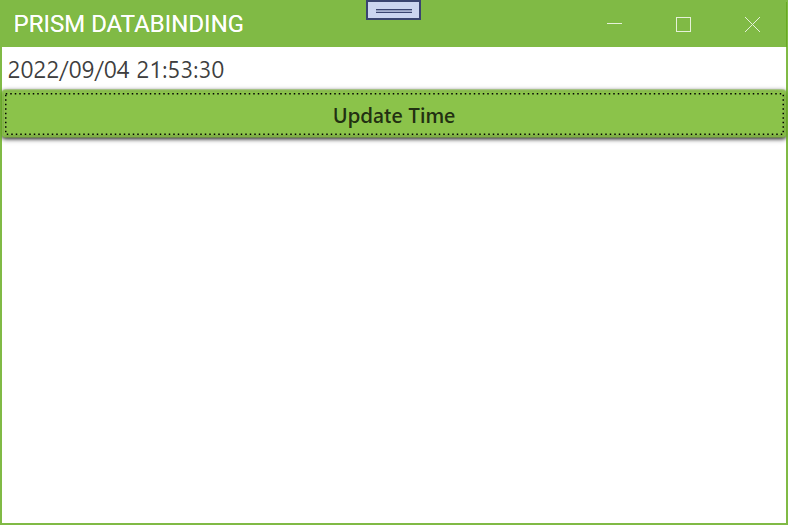
バインドされた文字列の更新
1. MaterialDesignWithMetroを作成したときと同様にして空のPrism WPFプロジェクトを作成し、Material Design In XAML ToolkitとMahApps.Metroを適用します。リポジトリのコードでは、プロジェクト名はDataBindingにしています。
2. MaterialDesignWithMetroのViews/MainWindow.xamlと同様、MetroWindowを使うように修正します。その後、下記のコードのハイライトした行を追加します。
Window内に現在の日時を表示し、ボタンを押して最新の日時に更新するWindowの準備をしています。日時を表示するLabelと日時を更新するButtonをStackPanel内に並べています。ContentControlは今回は使いませんが、変更前のまま残しています。
<metro:MetroWindow x:Class="DataBinding.Views.MainWindow"
        xmlns="http://schemas.microsoft.com/winfx/2006/xaml/presentation"
        xmlns:x="http://schemas.microsoft.com/winfx/2006/xaml"
        xmlns:metro="http://metro.mahapps.com/winfx/xaml/controls"
        xmlns:prism="http://prismlibrary.com/"
        prism:ViewModelLocator.AutoWireViewModel="True"
        Title="{Binding Title}" Height="350" Width="525" >
    <Grid>
        <StackPanel>
            <Label FontSize="16" Content="{Binding DateTimeLabel}" />
            <Button Content="Update Time" Command="{Binding DateTimeUpdateButton}"/>
            <ContentControl prism:RegionManager.RegionName="ContentRegion" />
        </StackPanel>
    </Grid>
</metro:MetroWindow>
3. Views/MainWindow.xaml.csの書き換えはMaterialDesignWithMetroと同様です。
using MahApps.Metro.Controls;

namespace DataBinding.Views
{
    /// <summary>
    /// Interaction logic for MainWindow.xaml
    /// </summary>
    public partial class MainWindow : MetroWindow
    {
        public MainWindow()
        {
            InitializeComponent();
        }
    }
}
4. ViewModels/MainWindowViewModel.csを下記のように書き換えます。ハイライトした行が書き換えた行または追加した行になります。
8行目でWindowのタイトルを”Prism DataBinding”に書き換えています。
15-20行目でMainWindow.xamlのLabelのContentにBindして表示する文字列のプロパティDateTimeLabelを用意しています。下記のように記述すると、文字列DateTimeLabelの値が変更された後すぐ表示される文字列も変化します。
22行目でMainWindow.xamlのButtonのCommandにBindするDateTimeUpdateButtonを用意しています。
26行目でButtonがクリックされたときに実行する関数DateTimeUpdateButtonExecuteを渡し、DelegateCommand型のDateTimeUpdateButtonオブジェクトを生成しています。
29-32行目はButtonが押されたときに呼ばれる関数を記述しています。System.DateTime.Now.ToString()でボタンがクリックされたときの日時文字列を取得し、DateTimeLabelにセットしています。DateTimeLabel文字列の値が変更された後すぐにMainWindowのLabelに表示される文字列も更新されます。
using Prism.Commands;
using Prism.Mvvm;

namespace DataBinding.ViewModels
{
    public class MainWindowViewModel : BindableBase
    {
        private string _title = "Prism DataBinding";
        public string Title
        {
            get { return _title; }
            set { SetProperty(ref _title, value); }
        }

        private string _dateTimeLabel = System.DateTime.Now.ToString();
        public string DateTimeLabel
        {
            get { return _dateTimeLabel; }
            set { SetProperty(ref _dateTimeLabel, value); }
        }

        public DelegateCommand DateTimeUpdateButton { get; }

        public MainWindowViewModel()
        {
            DateTimeUpdateButton = new DelegateCommand(DateTimeUpdateButtonExecute);
        }

        private void DateTimeUpdateButtonExecute()
        {
            DateTimeLabel = System.DateTime.Now.ToString();
        }
    }
}
5. 図の青枠の部分をクリックし、ビルドしてデバッグ実行を開始します。

6. 図のようなPrism DataBindingという名前のウィンドウが表示されます。プログラムを起動した日時がLabel部分にセットされています。Labelの下にはUpdate Timeというボタンがあります。
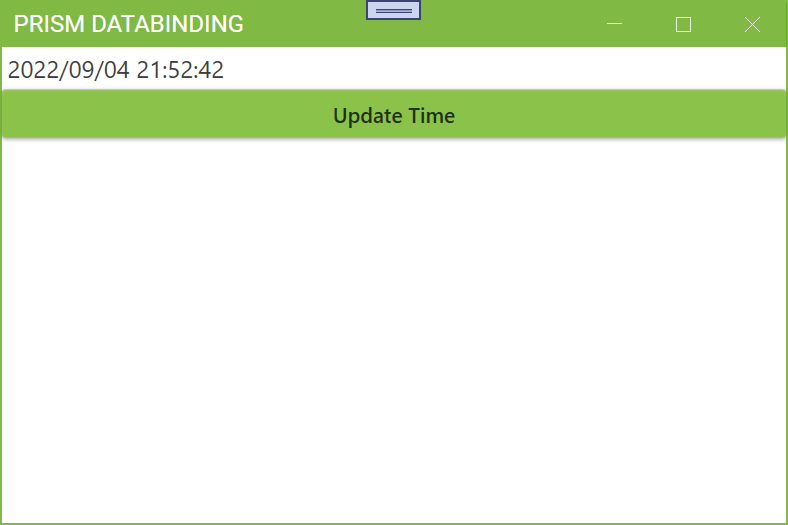
7. Update TimeボタンをクリックするとLabelの日時が更新されます。